Solana token tutorial
Every screen of creating a Solana SPL token on this site, with screenshots of the current interface, what each option really does, how to check the result, and what to do when a step does not finish. For the short version, use the launch checklist.
Last updated:
The screenshots use a demo token called "Demo Token" (DEMO) and a placeholder wallet address (111111...111111). They show the real page, not a customer's launch.
Before you begin
- A Solana wallet on mainnet. Phantom, Solflare or Backpack, as a browser extension or in the wallet's own browser on mobile. Check it is set to Solana mainnet, not a test network.
- Some SOL. Enough for the service charge (from 0.1 SOL) plus a little for the network fee on your payment. A liquidity pool, if you want trading, is a separate and larger cost; see the launch budget.
- A logo. A square PNG, JPG or WEBP. The page resizes large images before upload.
- Your settings decided. Name, symbol, supply, decimals, and which authorities to revoke. Decimals and revokes cannot be undone.
Step 1: Connect your wallet
Open the create page and click Connect wallet in the header, or Connect in the Wallet card on the right. Choose your wallet and approve the connection.
Connecting shares only your public address, so the page can show it and prepare your payment. It cannot move funds, and you never type a seed phrase into this site.
Step 2: Token details & logo
In the left column, fill in how the token presents itself:
- Name: the full display name, up to 32 characters.
- Symbol: the ticker, 2 to 10 characters, usually 3 to 6 capitals. Symbols are not unique on Solana, so buyers identify your token by its mint address.
- Description: optional, stored in the metadata file.
- Logo: click or drop an image. The preview card on the right updates as you go.
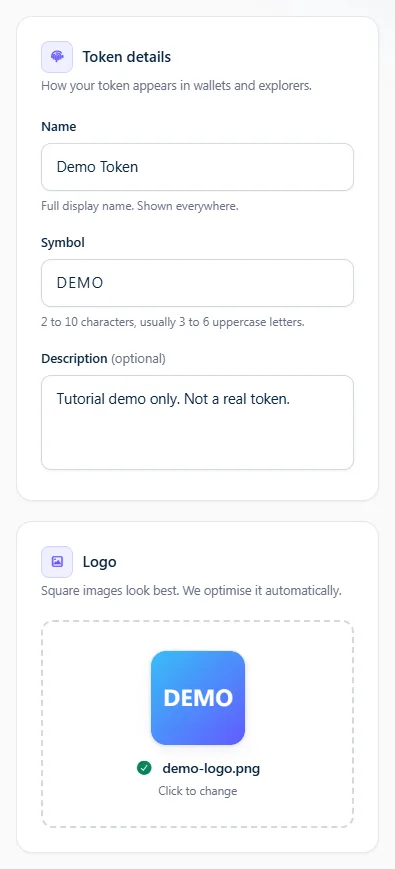
The name and symbol are written to an on-chain Metaplex metadata account. The logo and description live in a metadata file that this site hosts, which the on-chain account links to.
Step 3: Supply & decimals
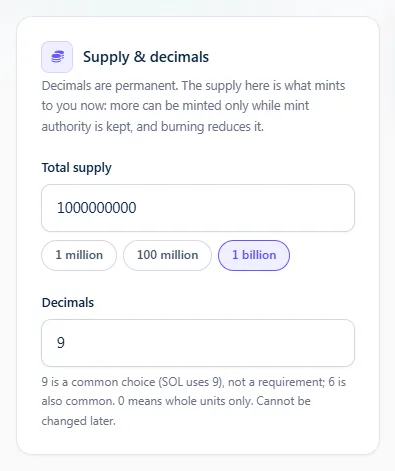
- Total supply: how many tokens are minted to your wallet now. Use a preset or type a number.
- Decimals: how finely one token divides. This can never change. 9 is a common choice (SOL uses 9) and 6 is also common, but neither is required. 0 means whole tokens only.
Supply is not locked by itself: if you keep mint authority you can mint more later, and anyone can burn tokens they hold, which lowers the total supply.
Step 4: Authority options
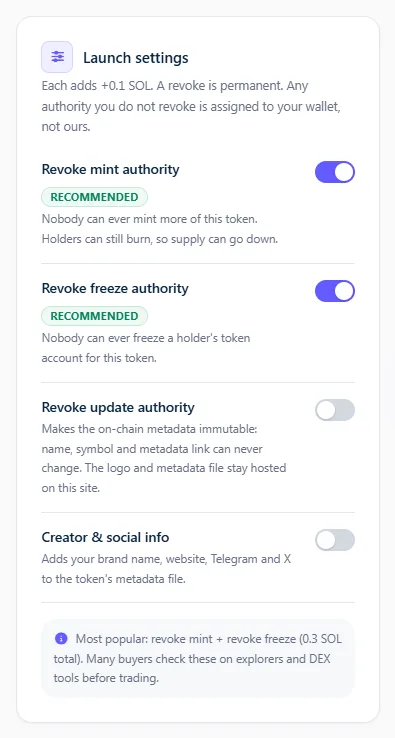
- Revoke mint authority: nobody can ever mint more. Holders can still burn, so the supply can go down.
- Revoke freeze authority: nobody can ever freeze a token account for this token. Freeze authority never covered whole wallets or other tokens.
- Revoke update authority: the on-chain name, symbol and metadata link can never change. The logo file behind that link stays hosted on this site.
- Creator & social info: adds your brand name, website, Telegram and X to the metadata file.
Anything you do not revoke is assigned to your connected wallet when the token is created, not kept by us. Revoking mint and freeze is the most common choice for community tokens. A revoke is permanent, so choose deliberately. More detail: the three authorities explained.
Step 5: Review the cost
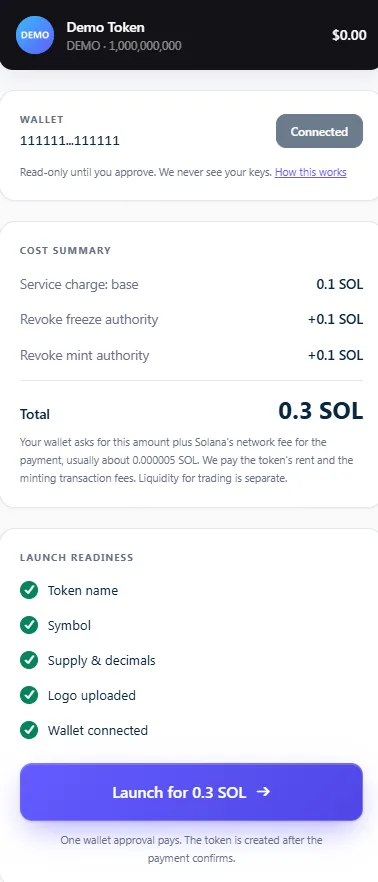
The cost summary lists the service charge: the base plus each option you chose, capped at 0.5 SOL. When every readiness row is ticked, the button shows your total.
Your wallet will ask for that amount plus Solana's network fee for the payment, usually about 0.000005 SOL. The rent for the token's accounts and the fees for the transaction that creates it are paid by us.
Step 6: Approve the payment
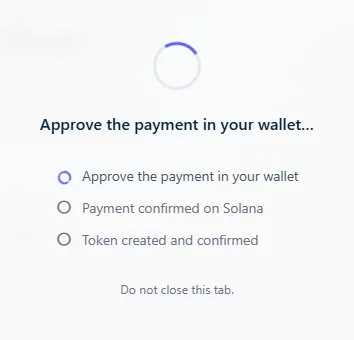
Click Launch and your wallet opens a payment request. Check it before approving: it should be a SOL transfer of the amount on screen, from your wallet to this site's payment address, with a short memo that starts with sctool-create-token. The memo ties the payment to your browser so nobody else can use it. If it asks for anything else, reject it.
The page then moves through three stages and only marks each one done on evidence:
- Payment approved: your wallet returned a transaction signature. That proves it was sent, not that it succeeded.
- Payment confirmed on Solana: Solana reports the payment confirmed with no error. Only now are your token details sent.
- Token created and confirmed: our service creates the token in a second transaction that it signs and pays for, and waits for that to confirm.
Step 7: Created, then verify
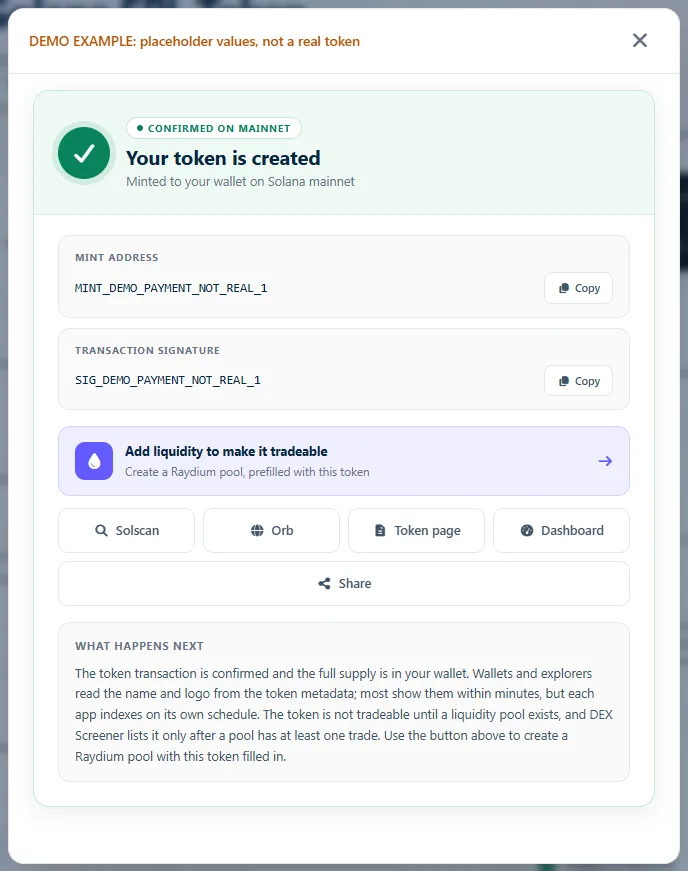
The success card shows your mint address (the token's permanent ID) and the token transaction's signature. Copy the mint address somewhere safe. Then check the token yourself:
- Open the Solscan link, or paste the mint address into any Solana explorer.
- Check the supply and decimals match what you chose.
- Check mint authority and freeze authority: revoked ones show as none or disabled; kept ones show your wallet address.
- Open your wallet. The full supply should be in it, though a new token can appear before its name and logo do.
Ready to follow along?
The create page walks you through exactly these steps.
Troubleshooting
The token is not in my wallet
- Make sure the wallet that is open is the one you connected when you paid, and that it is on Solana mainnet.
- Look up the mint address on an explorer. If it exists and shows your supply, the tokens are there; some wallets hide new or unverified tokens until you search for or enable them.
- If the page never showed "Your token is created", it was not confirmed yet; see the payment sections below.
The name or logo does not show
- Give it time. Wallets and explorers each index and cache metadata on their own schedule, and a logo often appears after the name.
- Open the token's metadata link on an explorer: if the name, symbol and image link are there, the token is fine and the app has not refreshed yet.
- Some apps only show logos for tokens on their own lists; that is their policy, not something the token controls.
My payment is pending or its status is unknown

- Do not pay again. This browser remembers every payment it makes until a token is created with it.
- Reopen the create page in the same browser. Use Check payment status on the notice.
- If the payment is confirmed but the token details did not arrive, use Restore my token details, re-attach your logo and launch. The page reuses the payment instead of asking for a new one.
- If Solana has no record of the payment a few minutes after you sent it, it never went through and nothing was charged; the page then lets you start again.
- Payments sent while the wallet was on a test network never reach mainnet. Switch to mainnet and start again.
I paid, but the token was not created
- The page says "Payment confirmed, token not created" and offers Retry token creation (no new payment). Retrying uses the payment already recorded; you cannot be charged twice for it.
- If it says "Token submitted, confirmation pending", the token transaction was sent but is not confirmed yet. Use Check status again after a minute. If it expires without confirming, creation is retried with the same payment.
- If it says "Token creation status unknown", our service stopped answering before we could tell what happened. We are alerted automatically. Do not pay again; contact support with the payment transaction shown.
- Payments from other devices or browsers cannot be recovered from this page; contact support with your wallet address and the payment transaction.
The payment failed or I cancelled it
- Cancelled in the wallet: nothing was sent or charged.
- Failed on Solana: the service charge was not taken. Solana may still keep its small network fee, which is how the network works. You can try again.
My token is not on DEX Screener or Jupiter
- Creating a token does not list it anywhere. DEX Screener adds a token automatically once it is in a liquidity pool and has had at least one transaction.
- Jupiter can only route trades for tokens that have liquidity, and applies its own criteria to its token lists.
- So the order is: create the token, add a liquidity pool, then the first trade makes it visible on DEX Screener.
After you create it
- Verify it on an explorer as in step 7.
- Add liquidity if you want trading. The add-liquidity tool creates a Raydium pool pairing your token with SOL; the SOL you add sets the starting price. See the launch budget for its costs.
- Share the mint address, not just the symbol, so people find the right token.
- Track it in the dashboard, which lists tokens created with your wallet.
How to disconnect your wallet
Use Disconnect in the wallet menu in our header. To remove the site's access completely, do it from your wallet: in Phantom, open Settings → Connected apps (or Trusted apps), find this site and choose Revoke or Disconnect. Solflare and Backpack have an equivalent list. Disconnecting does not affect any token you have already created.
Tutorial FAQ
Do I need any coding experience?
Can I edit my token after creating it?
What if the payment fails?
What if I pay and the token is not created?
How do I make my token tradeable?
Is the platform non-custodial?
Related: Launch checklist · What is a Solana token creator · Add liquidity